
Images.One PDF.
Arrange image pages, set the document, and export a PDF in your browser.
Build a PDFImages in order.
Choose the images you want to bring together. Each one becomes a page you can preview, adjust, and move into place before export.
- Add images
Select image files from your device. They stay in your browser while you work.
- Arrange pages
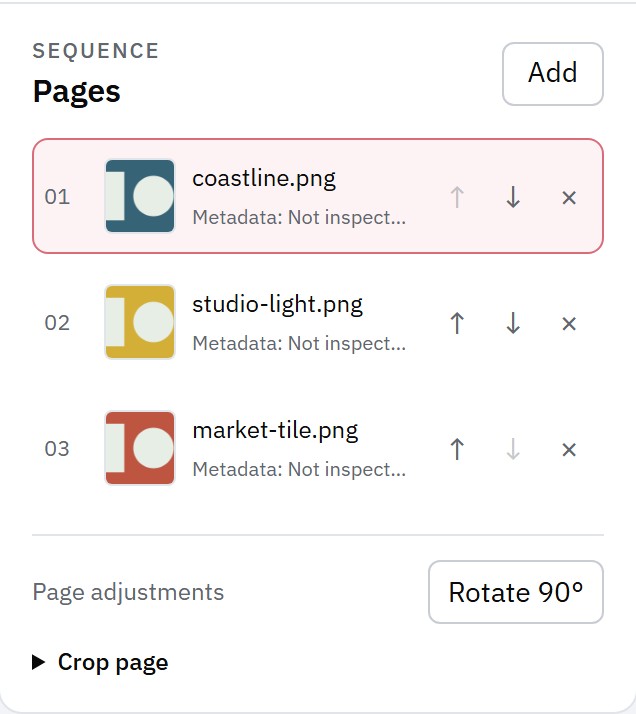
Review the sequence, rotate a page, and set the document around your images.
- Export the PDF
Check the preview, then save the finished document to your device.
Preview first.
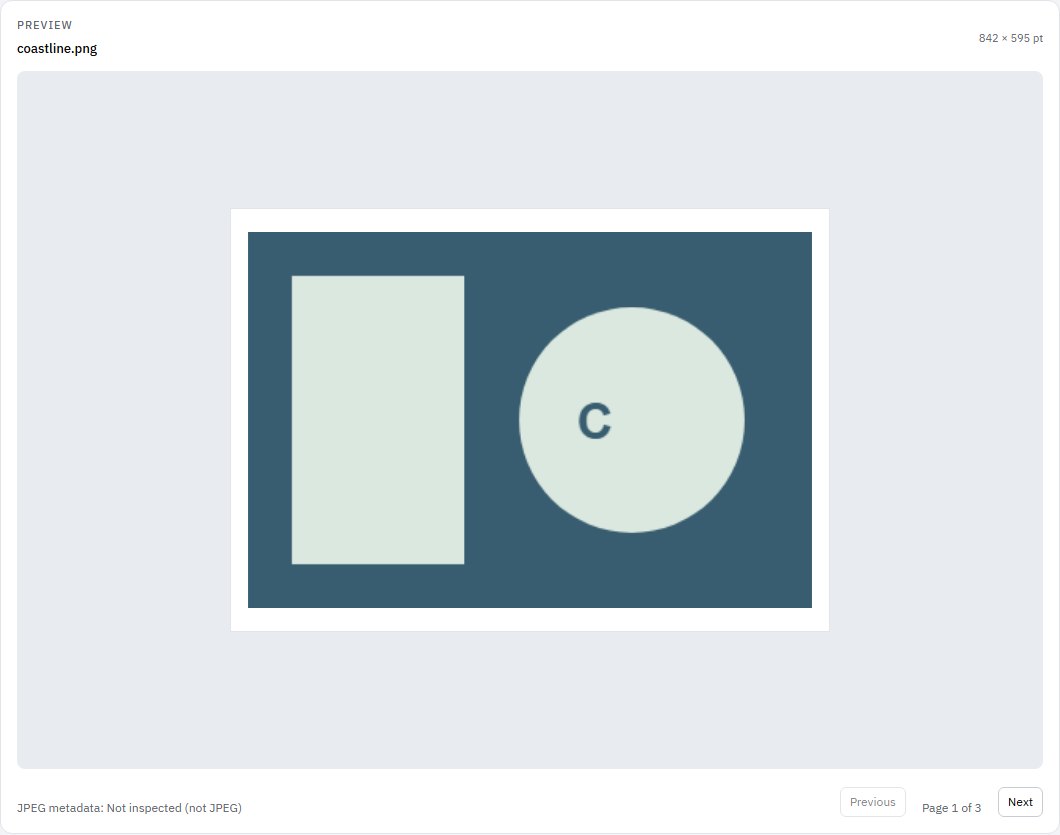
Preview the selected page at its document size. Move through the set to catch an unexpected crop or orientation before the PDF is saved.
Open the PDF builderFit each page.
Choose document settings for the result you need. These controls shape the PDF page, not the original image file.
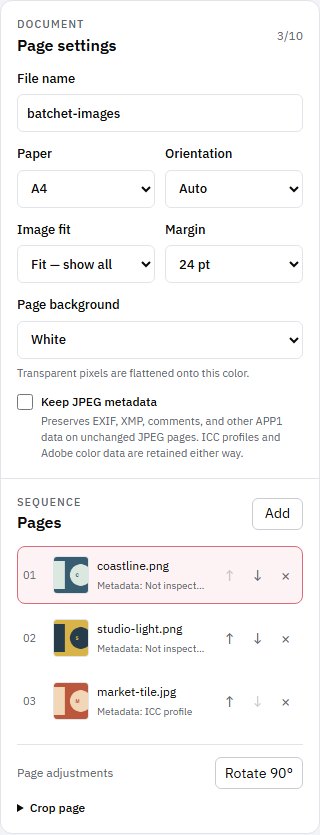
- Paper and orientationChoose A4, Letter, or fit the page to the image; set portrait, landscape, or automatic orientation.
- Image fit and marginShow the full image or fill the page, then adjust the space around it.
- BackgroundSet the page color used behind transparent pixels.
- JPEG metadataChoose whether to preserve metadata from unchanged JPEG files. It is off by default.
Choose “Fit — show all” to keep every image edge visible.
Images stay yours.
Image files are processed locally in your browser for PDF creation; this tool does not upload their contents to a Batchet processing server. Your browser and device still control local file access and downloaded copies.
Read the privacy policy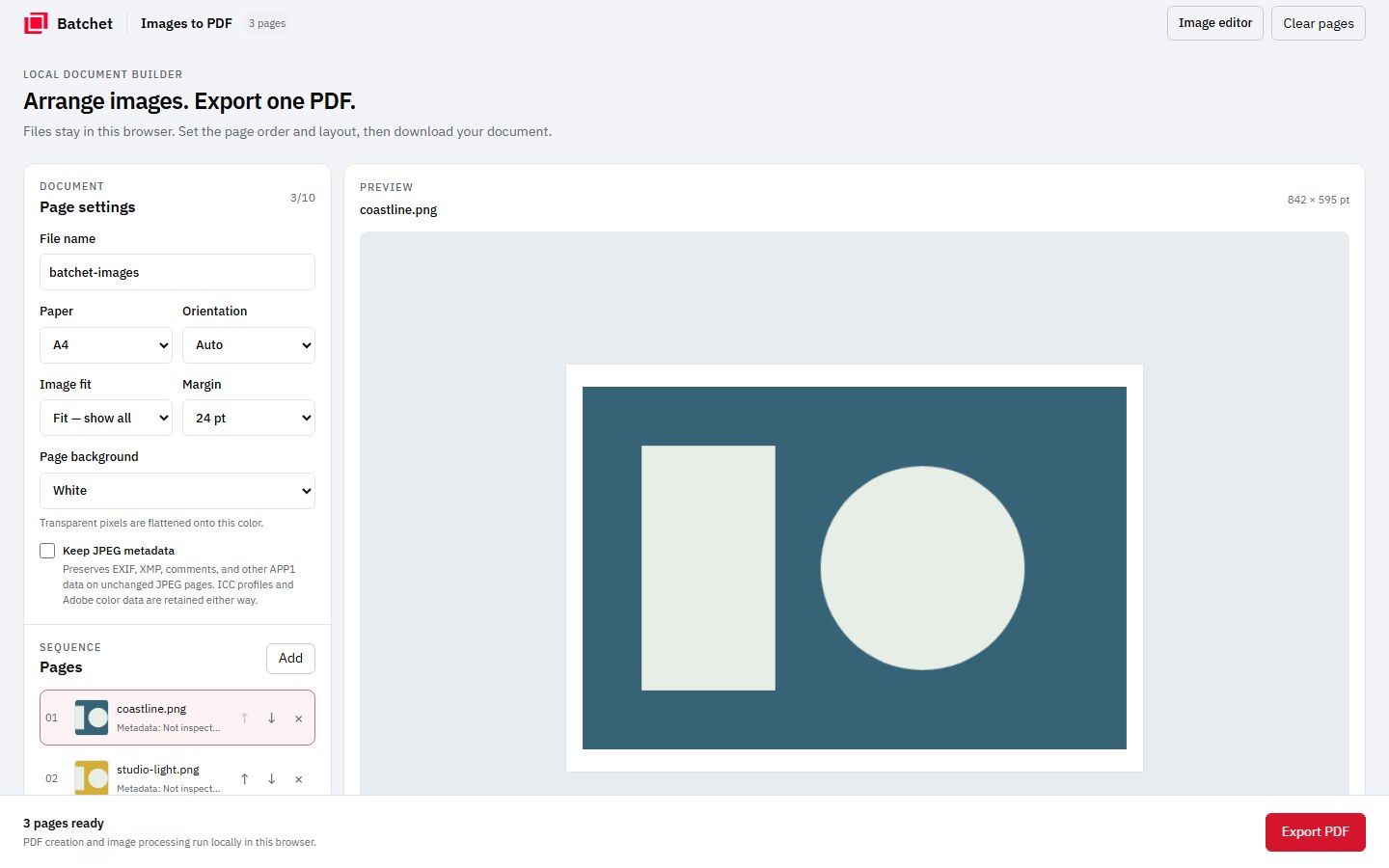
Before you export.
Which image formats can I add?
Formats depend on the image decoders available in your browser. The tool accepts common image files; AVIF and HEIC/HEIF output formats are not available.
Does the PDF builder upload my images?
No. Image contents are processed locally in your browser for this tool and are not uploaded to a Batchet processing server.
Can I control the final page size?
Yes. Choose A4, Letter, or fit the page to the image. You can also set orientation, image fit, margins, and page background.
Can I keep JPEG metadata?
JPEG metadata retention is optional and off by default. Metadata is preserved only for unchanged JPEG images; converted or edited images may not retain it.
How do I make the PDF?
Add images, arrange and preview their pages, choose your document settings, then select Export PDF to save the file.
Fit every
page.
Arrange, preview, and export your images as a PDF.
Build a PDF